
How to Move Your Website to a New Host Without Downtime (8 Steps)
Changing web hosts does not have to mean downtime or lost rankings. This 8-step guide covers backups, moving files and databases, testing before you switch DNS, email, SSL and the checks that protect your SEO.

Table of contents
- When is it time to change web hosts?
- Before you start: a migration checklist
- How to migrate a website to a new host in 8 steps
- 1. Take a complete backup
- 2. Lower your DNS TTL
- 3. Upload the files
- 4. Create and import the database
- 5. Test before changing DNS
- 6. Freeze changes and do a final sync
- 7. Point DNS to the new host
- 8. Monitor, then cancel the old plan
- Don't forget email
- Will changing hosts hurt SEO?
- Common migration mistakes
- Host migration vs domain transfer
- Video: transferring a website to another hosting provider
- Frequently asked questions
- How long does it take to migrate a website?
- Will my website go down when I change hosts?
- Does changing hosting affect SEO?
- Is it safe to migrate WordPress with a plugin?
- When should I cancel my old hosting?
- Conclusion
Sooner or later, many websites outgrow their hosting. Pages load slowly, support takes days to answer, the plan runs out of resources, or the renewal price no longer matches the quality. That is when you need to move your website to a new host, and most owners worry about the same three things: losing data, days of downtime and a drop in Google rankings.
The good news is that a migration done in the right order is invisible to your visitors. This guide walks through a website migration step by step: taking a complete backup, testing the site on the new server before you touch DNS, moving email and SSL, and the checks that protect your SEO after the switch.
When is it time to change web hosts?
- Persistent slowness: server response time stays high even after you have optimized the site itself.
- Frequent outages: the site goes down several times a month or throws 500 and 503 errors.
- Resource limits: disk, RAM or CPU caps are hit regularly and it is time to move from shared hosting to a VPS.
- Poor support: tickets sit unanswered for hours or days.
- Missing features: outdated PHP versions, no automatic backups, no free SSL.
- Bad value: the renewal price has crept up while performance has not.
If you have not picked the destination yet, start with our guide on how to choose web hosting. Also make sure the new server runs a compatible stack; most PHP and WordPress sites belong on Linux hosting.
Before you start: a migration checklist
- Full access to the old host (control panel, FTP or SSH) and to your domain registrar account.
- An active new hosting plan with enough space and the same PHP and database versions your site uses today.
- A list of every email account, cron job, subdomain, redirect and custom server setting.
- A low-traffic time window; for online stores that usually means late at night.
- A firm rule: do not cancel the old hosting until the migration is finished and verified.
How to migrate a website to a new host in 8 steps
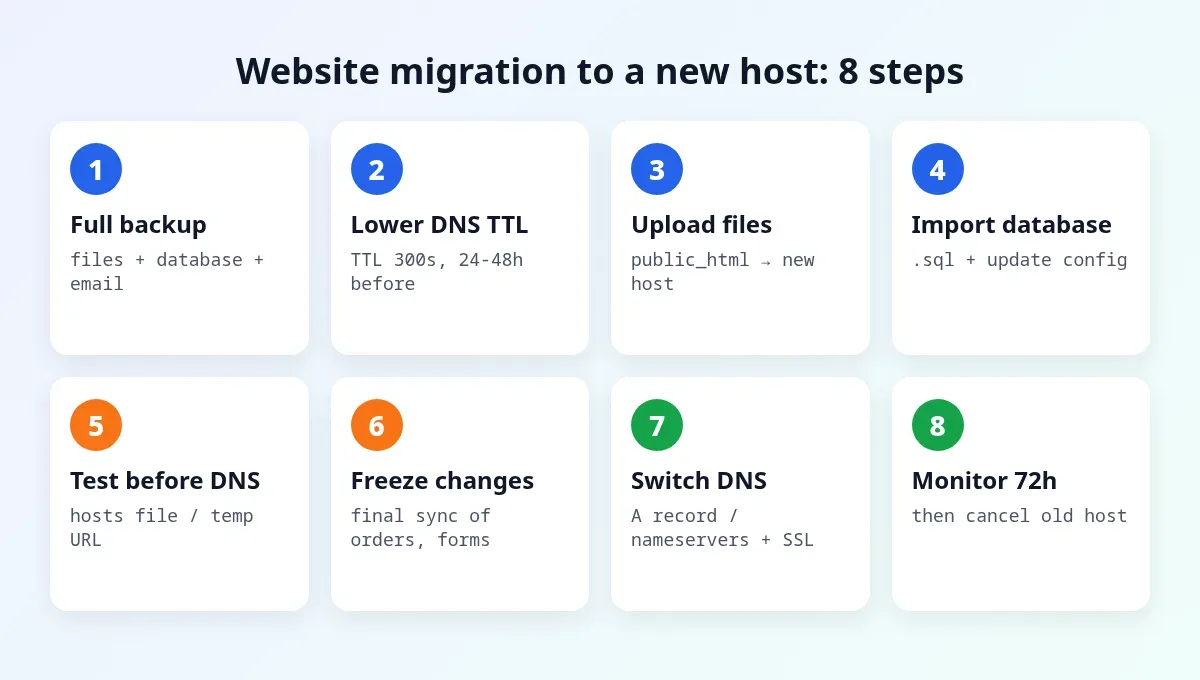
1. Take a complete backup
Back up all files (usually the public_html folder), every database and, if hosted there, your mailboxes. In cPanel you can create a full account backup or download files and databases separately. Keep one copy on your own computer, not only on the server you are leaving.
2. Lower your DNS TTL
TTL tells resolvers around the world how long to cache your DNS records. One or two days before the move, reduce the TTL of your A record to around 300 seconds. When you later point the domain to the new server, the change will spread in minutes instead of hours.
3. Upload the files
If both hosts use cPanel, restoring the full backup on the new account is the cleanest route, and many hosts will do it for you free of charge. Otherwise, upload a single zip archive of your site through the new host's File Manager and extract it there. One archive transfers far faster and more reliably than thousands of small files over FTP. New to the panel? See What is cPanel?
4. Create and import the database
Create a new database and user on the new host, grant the user all privileges, and import your .sql file with phpMyAdmin. Then update the site's configuration; in WordPress that is wp-config.php with DB_NAME, DB_USER, DB_PASSWORD and DB_HOST. Large databases that time out in phpMyAdmin can be imported server-side by support.
WordPress migrations: if the domain stays the same, these manual steps are usually all you need. Plugins such as Duplicator or All-in-One WP Migration bundle everything into one package, but they have size limits and are not always reliable for large sites.
5. Test before changing DNS
This is the step most people skip. Edit the hosts file on your computer (on Windows: C:\Windows\System32\drivers\etc\hosts; on macOS and Linux: /etc/hosts) and add a line with the new server's IP and your domain. Now only your browser loads the site from the new host while everyone else still sees the old one. Click through the home page, key pages, forms, the admin area and, for stores, the cart and checkout. Remove the line when you are done.
6. Freeze changes and do a final sync
If your site takes orders, sign-ups or comments, new data may reach the old server after your backup. Put the site in maintenance mode for a few minutes, export a fresh database and import it on the new host so nothing is lost.
7. Point DNS to the new host
Either change the domain's nameservers at your registrar to the new host's nameservers, or, if DNS is managed elsewhere (for example Cloudflare), simply update the A record to the new IP. Updating the A record is faster because you lowered the TTL in advance; nameserver changes can take up to 48 hours. As soon as the domain resolves to the new server, issue an SSL certificate (AutoSSL or Let's Encrypt) so the site loads over HTTPS without warnings.
8. Monitor, then cancel the old plan
Keep the old hosting for at least a week. Watch error logs, test forms and email, and compare speed. If you still see the old version, clear your browser, plugin and CDN caches.
Don't forget email
If your business email lives on the same hosting, changing nameservers also changes your MX records. Create every mailbox on the new host before the DNS switch, recreate SPF, DKIM and DMARC records, and move old messages via backup restore or an IMAP sync. If email is on a separate service such as Google Workspace or Microsoft 365, copy its MX and TXT records exactly into the new DNS zone.
Will changing hosts hurt SEO?
Not if your URLs and domain stay the same and the site stays online during the move. Google simply learns a new server IP. The real risks are long downtime, 5xx errors and a slower server. To stay safe:
- Watch Crawl stats and the Pages report in Google Search Console for the first days.
- Confirm that
robots.txton the new server does not block crawling, a common leftover from staging setups. - If you are also changing the domain or URL structure, 301-redirect every old URL to its new address.
- Measure speed before and after with PageSpeed Insights to confirm the new host is actually faster.
Common migration mistakes
| Mistake | Result | Prevention |
|---|---|---|
| Cancelling the old host too early | Lost files or email | Wait at least a week |
| Switching DNS without testing | Visitors see database errors | Test with the hosts file |
| Forgetting mailboxes | Customer emails bounce | Create mailboxes before the switch |
| Different PHP version | White screen or 500 error | Match PHP versions |
| No SSL on the new server | "Not secure" warnings | Run AutoSSL right after the DNS change |
| Missing cron jobs | Backups and scheduled emails stop | Document them beforehand |
Host migration vs domain transfer
These are often confused. Migrating hosting moves your files and database to another server while the domain stays registered where it is. A domain transfer moves the management of the domain name itself to a different registrar, and the website can stay on the same hosting. Our guide on how to transfer a domain to another registrar covers that process. Avoid doing both on the same day so that if something breaks, you know which change caused it. If you are still deciding on a name, see how to choose a domain name.
Video: transferring a website to another hosting provider
Prefer to watch? This walkthrough shows the process end to end:
Frequently asked questions
How long does it take to migrate a website?
Moving the files and database of a typical site takes a few hours. Nameserver changes can take up to 48 hours to propagate, but if you lower the TTL in advance and only update the A record, the switch usually takes minutes.
Will my website go down when I change hosts?
Not if you test the site on the new server before changing DNS and keep the old hosting active until you finish. At every moment, one of the two servers is answering visitors.
Does changing hosting affect SEO?
Not if the domain and URLs stay the same and the site stays online. Only the server IP changes. Long downtime, 5xx errors or a slower server are what can hurt rankings.
Is it safe to migrate WordPress with a plugin?
For small and medium sites, plugins like Duplicator or All-in-One WP Migration work well. For large sites and busy stores, a manual migration or a full cPanel backup restore is more reliable.
When should I cancel my old hosting?
Wait at least a week after the switch to be sure DNS has updated everywhere, email is flowing and nothing was left behind.
Conclusion
A smooth migration comes down to order: full backup, lower TTL, move files and database, test via the hosts file, final sync, switch DNS, issue SSL, then monitor. Follow it and your site moves to its new home without noticeable downtime or ranking loss.
Short on time, or running a busy store where every minute counts? The IlyaWeb support team can handle the whole migration, from backup to final testing. For slow WordPress sites, see our WordPress optimization service.
Featured image: BalticServers data center, Wikimedia Commons, licensed CC BY-SA 3.0; cropped and compressed by IlyaWeb.